 termal
PuTTY deserves its reputation. It’s small, it’s honest, it has worked the same way since the dial-up era, and half the world’s server closets were administered through it. Nobody has to leave. But if you’ve caught yourself juggling eleven PuTTY windows on a taskbar, copying files with a separate WinSCP window, and typing the same passphrase forty times a day — the itch is real, and the move is smaller than it looks.
This guide gets everything out of PuTTY intact: sessions, keys, host keys, habits. It’s written with Termalin as the destination, but the first half applies to any modern client.
Know where PuTTY keeps your stuff
PuTTY famously has no config file. Everything lives in the Windows registry:
- Sessions —
HKEY_CURRENT_USER\Software\SimonTatham\PuTTY\Sessions, one key per saved session: host, port, username, per-session settings. - Known host keys —
HKEY_CURRENT_USER\Software\SimonTatham\PuTTY\SshHostKeys— the fingerprints of every server you’ve ever trusted. - Private keys — wherever you saved the
.ppkfiles. The registry only stores the path to a session’s key, not the key itself. If you’re like most long-time users, there’s akeysfolder somewhere you haven’t opened since 2019.
Worth knowing even if you stay: this is why your PuTTY setup doesn’t follow you to a new machine unless you remember to export the registry branch.
Step 1 — export the sessions
On the machine with your PuTTY setup, from a command prompt:
reg export "HKCU\Software\SimonTatham\PuTTY\Sessions" putty-sessions.regThat single .reg file is your complete session inventory — portable, human-readable, and the input format most importers (Termalin included) accept on any OS. On Windows you can usually skip even this: Termalin’s hosts list has an import menu that reads your saved PuTTY sessions straight from the registry, one click, and they arrive as regular hosts you can sort into folders and tag.
Step 2 — convert the keys
PuTTY’s .ppk format is its own thing; the rest of the world speaks OpenSSH. Conversion is built into PuTTYgen and takes seconds per key:
- Open PuTTYgen,
Loadthe.ppk(enter its passphrase). - Menu Conversions → Export OpenSSH key (force new file format).
- Save as
id_ed25519/id_rsa— the passphrase carries over.
Two notes from the trenches: export the new format (the legacy one predates Ed25519), and don’t forget keys referenced by sessions but stored in odd places — the session import will tell you which paths it expected. Once converted, import the keys into your new client; in Termalin they go into the built-in agent, which means one unlock per session of work, passphrase caching on a timer you control, instead of one passphrase per connection.
If you drove Pageant all day, that habit maps directly: Termalin’s agent plays the same role, and git or any CLI can sign through the standard ssh-agent protocol.
Step 3 — don’t blindly re-trust every server
You can migrate PuTTY’s SshHostKeys — but honestly: don’t bother. Fingerprint formats differ, and a migration is the one natural moment you’ll ever have to re-verify what you’re connecting to. A modern client (Termalin uses trust-on-first-use with a proper known_hosts) will show each server’s fingerprint on first connect — glance at the ones that matter, accept, move on. Ten minutes for a fleet you’ll trust cleanly for years.
Step 4 — rebuild the two habits PuTTY never had
Tabs instead of windows. Eleven sessions become one window with browser-style tabs (drag to reorder, activity glow on the quiet ones). The win isn’t cosmetic — it’s that “which window was staging?” stops being a question.
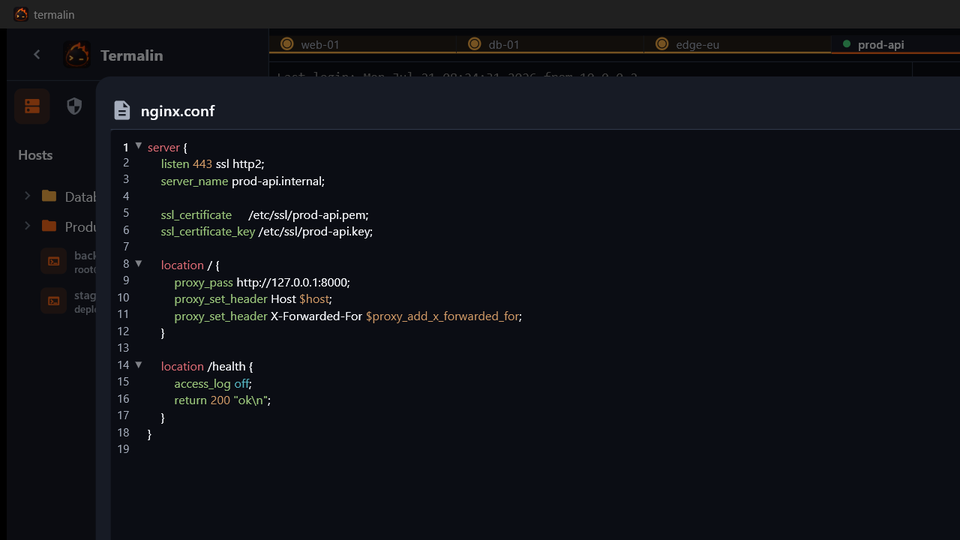
Files next to the terminal. The separate-WinSCP-window workflow collapses into an SFTP panel in the same tab as the shell: browse, edit in place with a built-in editor, upload — no second app, no reconnecting the same credentials.
Everything else transfers as-is: your servers are still your servers, your muscle memory still works, Ctrl+D still logs you out.
What you gain that has no PuTTY equivalent
Sessions that follow you — hosts, keys and command history sync across machines, end-to-end encrypted so the sync server only ever holds ciphertext. Terminal themes per host (staging in Nord, production in something appropriately red). And if you work with AI agents: a built-in MCP server that lets an agent open SSH sessions through the app, under your eyes, without ever seeing a key — a sentence that would have sounded like science fiction when your .ppk files were created.
Termalin runs on Windows, macOS, Linux and iOS; the Free tier has no host limits and imports PuTTY sessions in one click — download it, or see the full PuTTY comparison.